Reverse Image Search from Screenshot: How-To Tips
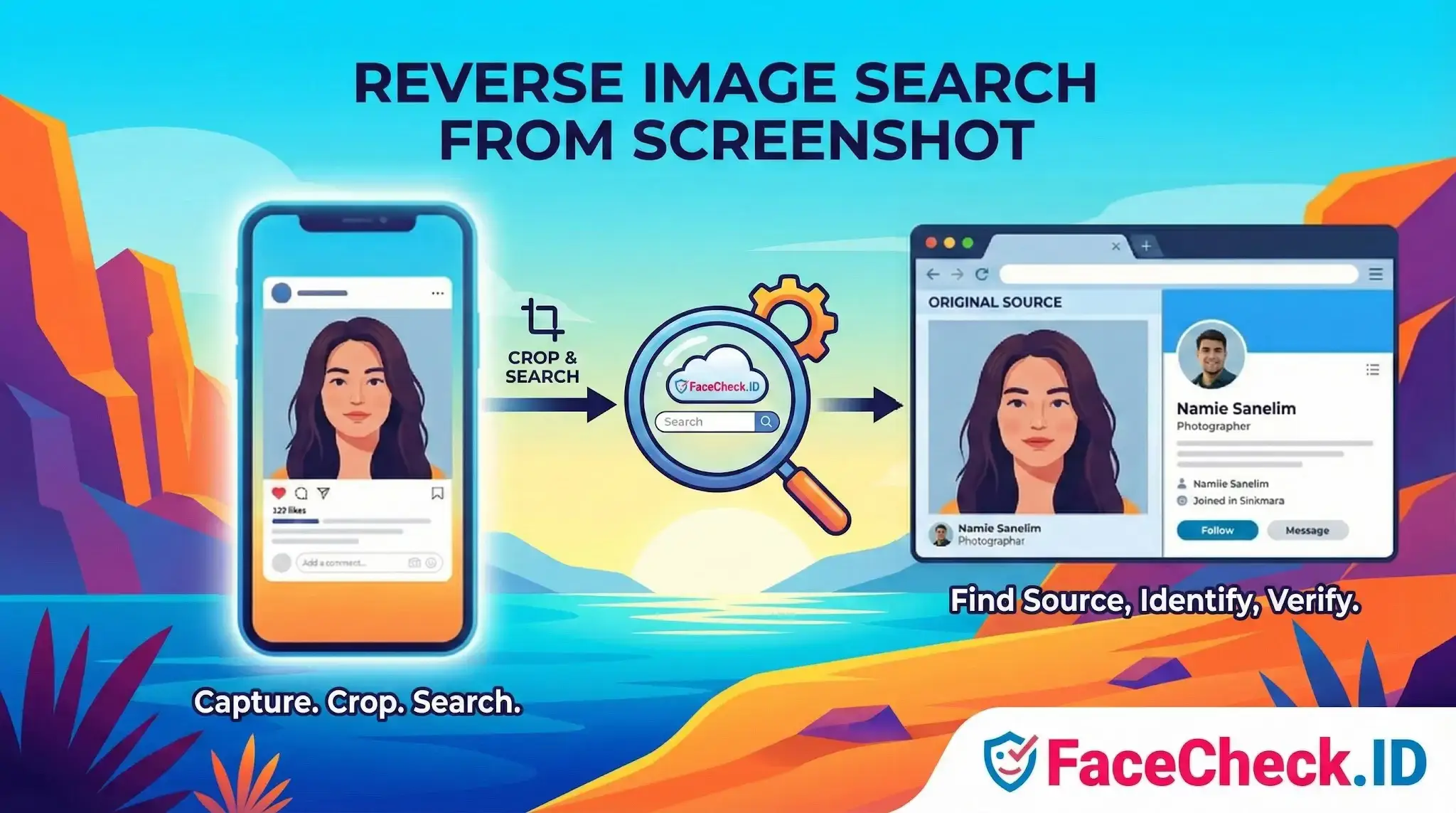
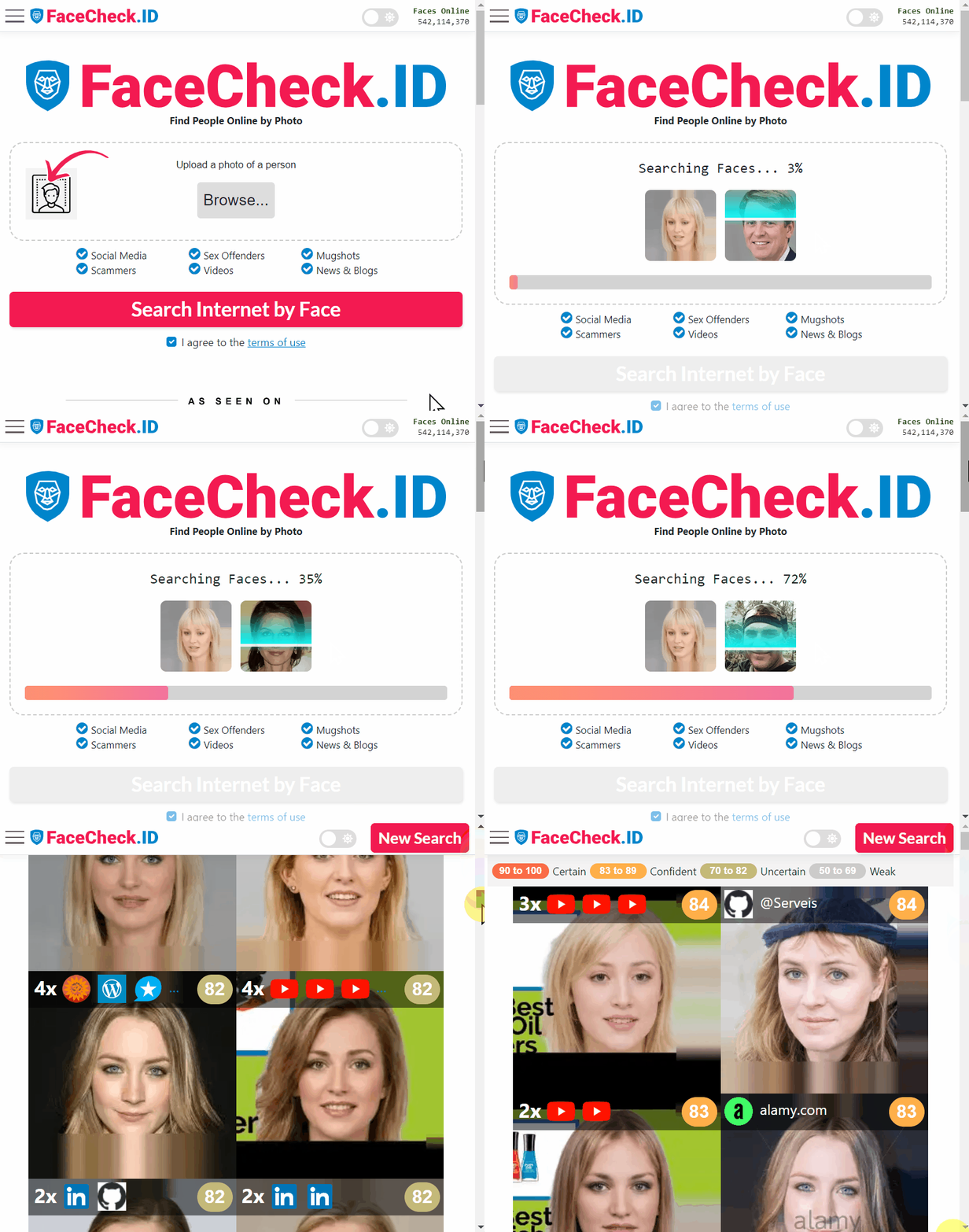
Reverse image search from screenshot means using a screenshot as the input image to find where that visual appears online, identify what is in the image, or locate the original source. Instead of uploading a photo file, you capture what is on your screen, then search the web using that screenshot.
This method is useful when you cannot download the original image, such as images inside apps, videos, social media posts, stories, or private websites.
What it does
A reverse image search from a screenshot can help you:
- Find the original image or higher quality versions
- Discover the source website or earliest known upload
- Identify people, products, places, artwork, or logos
- Check if an image is reused, edited, or reposted
- Find similar images, visually related results, or duplicates
- Track where a screenshot image appears across the web
How it works
Most tools analyze visual patterns in the screenshot, such as shapes, colors, textures, objects, and sometimes embedded text. The tool then matches those features to indexed images online and returns pages that contain the same or similar visuals.
Because a screenshot often includes extra elements like UI buttons, captions, borders, or timestamps, it may reduce match accuracy. Cropping the screenshot to the main subject usually improves results.
Best practices for better results
- Crop tightly around the main image or object
- Remove overlays like captions, icons, or chat bubbles when possible
- Use the highest resolution screenshot you can capture
- Try multiple tools if results are limited
- Search different crops of the same screenshot if the scene is busy
- Look for text clues in the screenshot and run a text search alongside the image search
Common use cases
- Verifying if a viral image is real or taken out of context
- Finding the product name from a screenshot of an item
- Identifying a location from a scene in a video
- Locating the original artist or photographer
- Checking reposted profile pictures or stolen images
- Finding the full image from a cropped screenshot
Limitations
Reverse image search from a screenshot may not work well when:
- The screenshot is blurry, low resolution, or heavily compressed
- The image is new, private, or not indexed by search engines
- The content is inside closed platforms or restricted pages
- The screenshot includes heavy edits, filters, or large text overlays
- The image is a frame from a fast moving video with motion blur
FAQ
What does “Reverse Image Search from Screenshot” mean for face recognition search engines?
“Reverse Image Search from Screenshot” means using a screenshot (often from social media, a video frame, or a chat app) as the input image to look for visually related results. In face recognition search engines, the goal is usually to match the face within the screenshot to other photos of the same person (or very similar-looking people), rather than to find exact duplicate copies of the screenshot.
How do I prepare a screenshot to get better face-match results (and fewer wrong-person matches)?
Crop tightly to a single face (remove other faces), keep the full face visible (forehead to chin), and avoid UI elements like usernames, timestamps, emojis, and stickers. Use the highest-resolution screenshot you can, minimize blur/compression (don’t re-save repeatedly), and prefer a frame where the subject is facing forward with good lighting.
Why can reverse searching a screenshot produce worse results than searching with the original photo?
Screenshots often reduce effective quality: they may be lower resolution, heavily compressed, sharpened, or contain overlays (captions/watermarks) that interfere with face detection. Screenshots can also capture a screen-rendered version of a photo (extra artifacts), or a video frame with motion blur—making the face embedding less reliable and increasing near-match (look-alike) results.
Can I use a screenshot that includes multiple faces, and how should I handle group shots?
You can, but group screenshots often confuse results because the system may lock onto the wrong face or mix signals. For best accuracy, crop the screenshot so only the target face remains, and run separate searches for each person. If cropping isn’t possible, choose a frame where the target face is largest and clearest compared to others.
How can FaceCheck.ID add value when doing a reverse image search from a screenshot, and what should I watch out for?
FaceCheck.ID can be useful when the screenshot is not an exact duplicate of what’s online (e.g., cropped, resized, or reposted) because face-focused search can still surface pages containing the same person’s face. Treat results as leads, not proof: verify by checking source pages, looking for multiple consistent photos across time, and cross-checking context (location, names, and accounts) before concluding it’s the same person.