Search by Screenshot: What It Is & How It Works
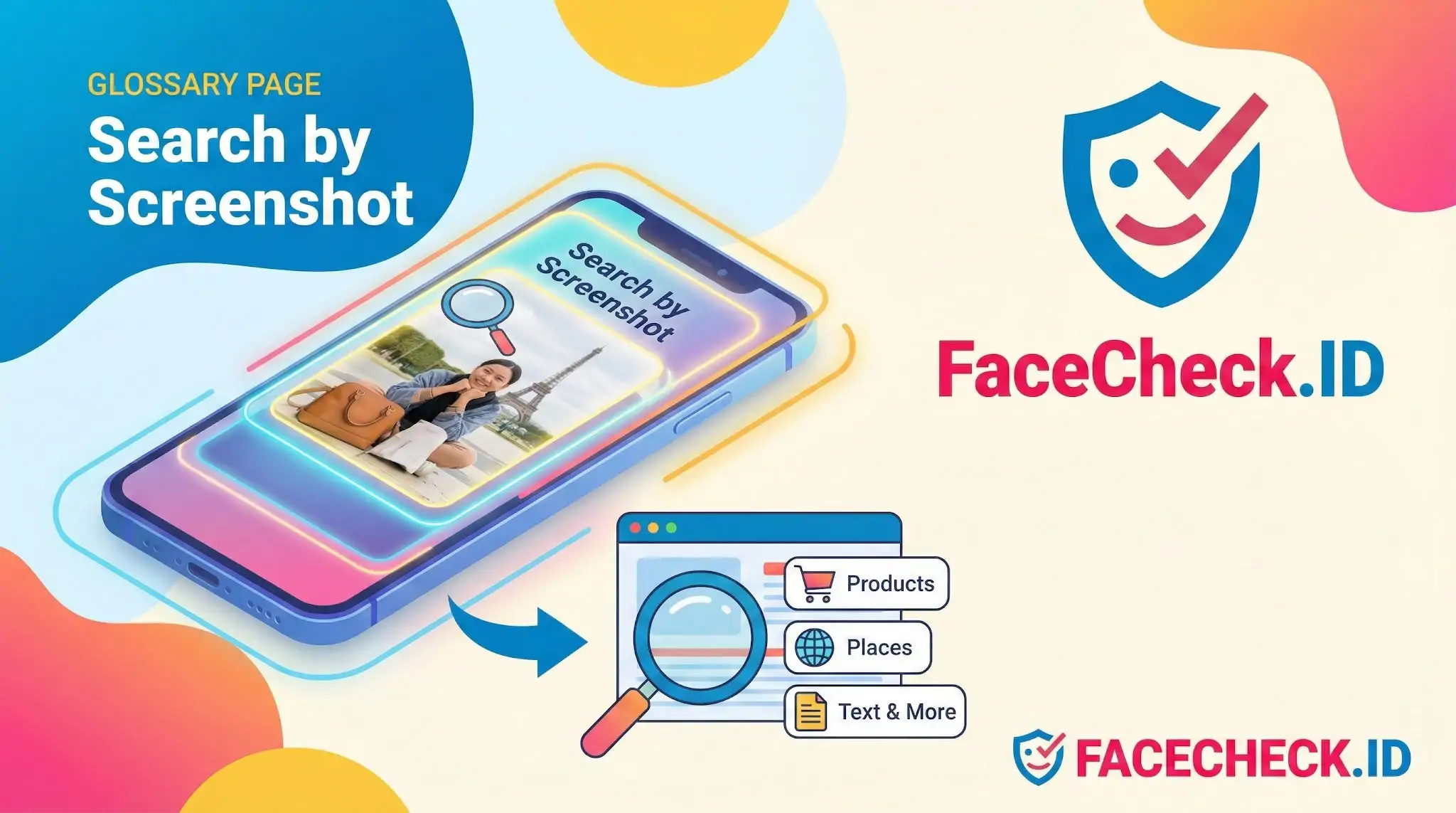
Search by Screenshot is a way to search the web using an image taken from your screen. Instead of typing keywords, you upload a screenshot to a visual search tool, and it tries to identify what is shown in the image. It can recognize products, places, text, landmarks, apps, outfits, furniture, logos, and more.
What it does
When you search by screenshot, the tool analyzes the image and returns results such as:
- Exact matches of the same image or scene found online
- Similar images that look alike
- Product listings for items shown in the screenshot
- Pages and sources where the image appears
- Text extraction if the screenshot contains readable words
- Related entities like brands, locations, or objects
How it works
Most search by screenshot features use computer vision and machine learning to:
- Detect objects and shapes in the screenshot
- Read text in the image using OCR when possible
- Compare the screenshot against indexed images and product catalogs
- Rank results based on visual similarity and context
Common ways people use search by screenshot
- Find the name of a product from a social media post or video frame
- Locate where to buy clothing, shoes, bags, or home decor
- Identify a landmark, building, or travel location
- Track down the source of an image or its original upload
- Copy text from an image when you cannot select it
- Discover an app, UI element, or icon shown on screen
Tools that support search by screenshot
Popular options include:
- Google Lens via the Google app, Chrome, or Android sharing menus
- Bing Visual Search in Microsoft Edge and Bing
- Pinterest Lens for style and product discovery
- Dedicated reverse image search sites that accept uploaded images
Tips for better results
- Crop the screenshot to the main subject to reduce noise
- Use a higher resolution screenshot when possible
- Avoid heavy filters and motion blur from video frames
- If the item is small, zoom in before taking the screenshot
- Try multiple tools if results are unclear, since databases differ
Search by Screenshot vs reverse image search
Search by screenshot is a type of reverse image search, but it usually focuses on identifying objects and shopping or entity results from a screen capture. Traditional reverse image search often emphasizes finding exact copies of an image and where it appears online.
FAQ
What does “Search by Screenshot” mean in a face recognition search engine?
“Search by Screenshot” means using a screenshot (for example, from a dating app, social post, or video call) as the input image for a face-search tool. The engine detects the face inside the screenshot, creates a facial representation (embedding), and searches its index for visually matching faces across other images online.
When is “Search by Screenshot” the best option compared to using the original photo?
It’s most useful when you can’t download the original image file—such as images inside apps, ephemeral stories, livestreams, or video calls—so a screenshot is the only practical capture method. It can also help preserve on-screen context for your own review, but you should avoid relying on that context (captions/usernames) as proof of identity.
How do face recognition search engines handle screenshots with UI elements, captions, or watermarks?
Most face-search engines first run face detection, then crop/align the face region and ignore much of the surrounding interface. However, heavy overlays (stickers, emojis, text covering facial features, strong watermarks) can block key landmarks and reduce match quality, so cropping tightly to the unobstructed face usually improves results.
Can a “Search by Screenshot” workflow increase false matches, and what’s a safer way to interpret results?
Yes. Screenshots are often lower quality (resized, compressed, or sharpened by the app), and may capture expressions or angles that resemble other people. Treat matches as investigative leads, validate using multiple independent images of the same person (different angles/lighting), and corroborate with non-face cues (consistent handles, timestamps, linked accounts) before concluding it’s the same individual.
How can FaceCheck.ID add value in a “Search by Screenshot” workflow without over-identifying someone?
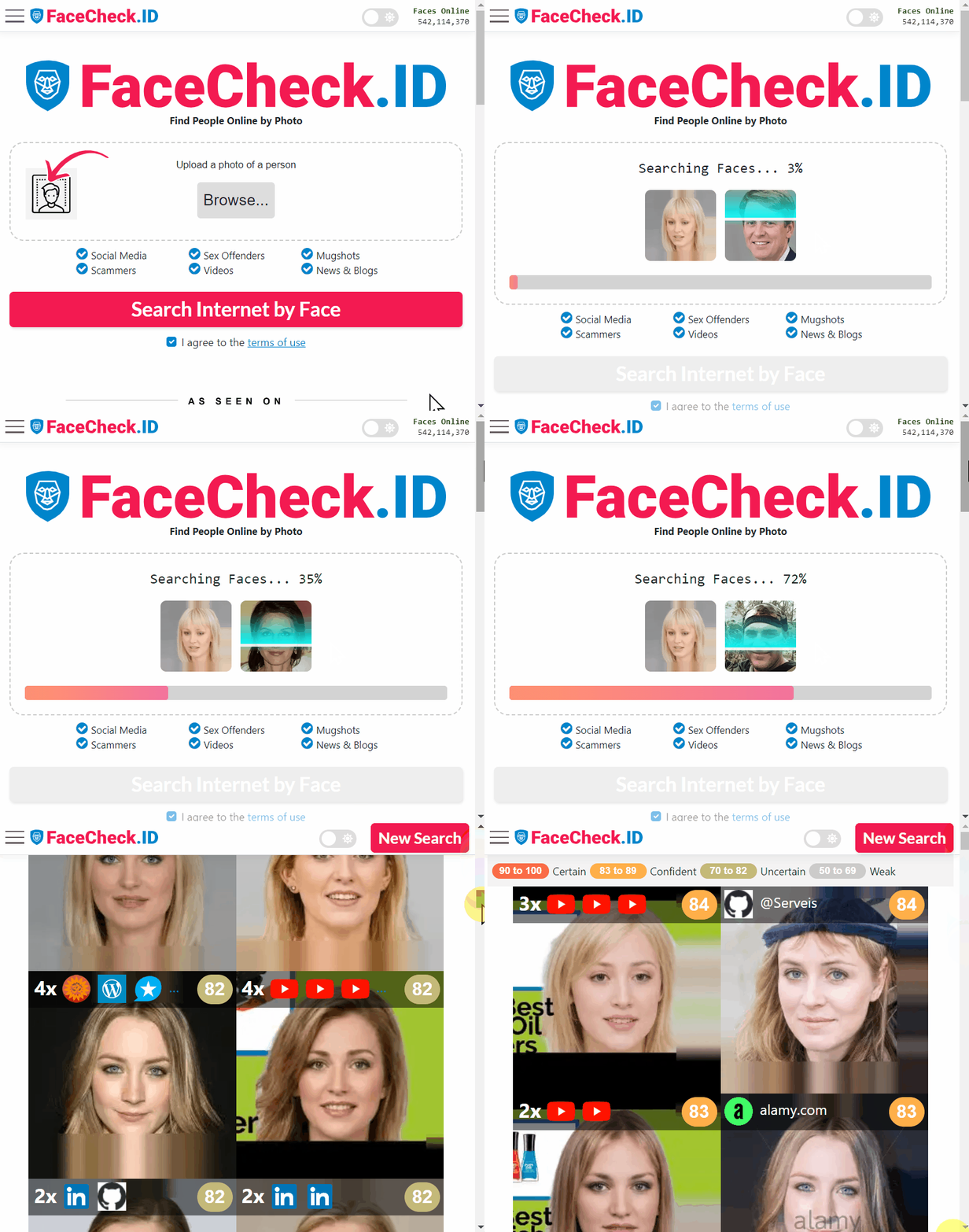
If you use a tool like FaceCheck.ID, it can be helpful to (1) upload a tightly cropped face from the screenshot, (2) run searches with 2–3 different screenshots/frames of the same person, and (3) compare whether results converge on the same sources rather than one-off near-matches. Use any similarity indicators to prioritize review, not as identity proof, and avoid public accusations or doxxing based on search results alone.

Recommended Posts Related to search by screenshot
-
How to Find Someone Using a Screenshot
Search by Screenshot and Find Anyone.