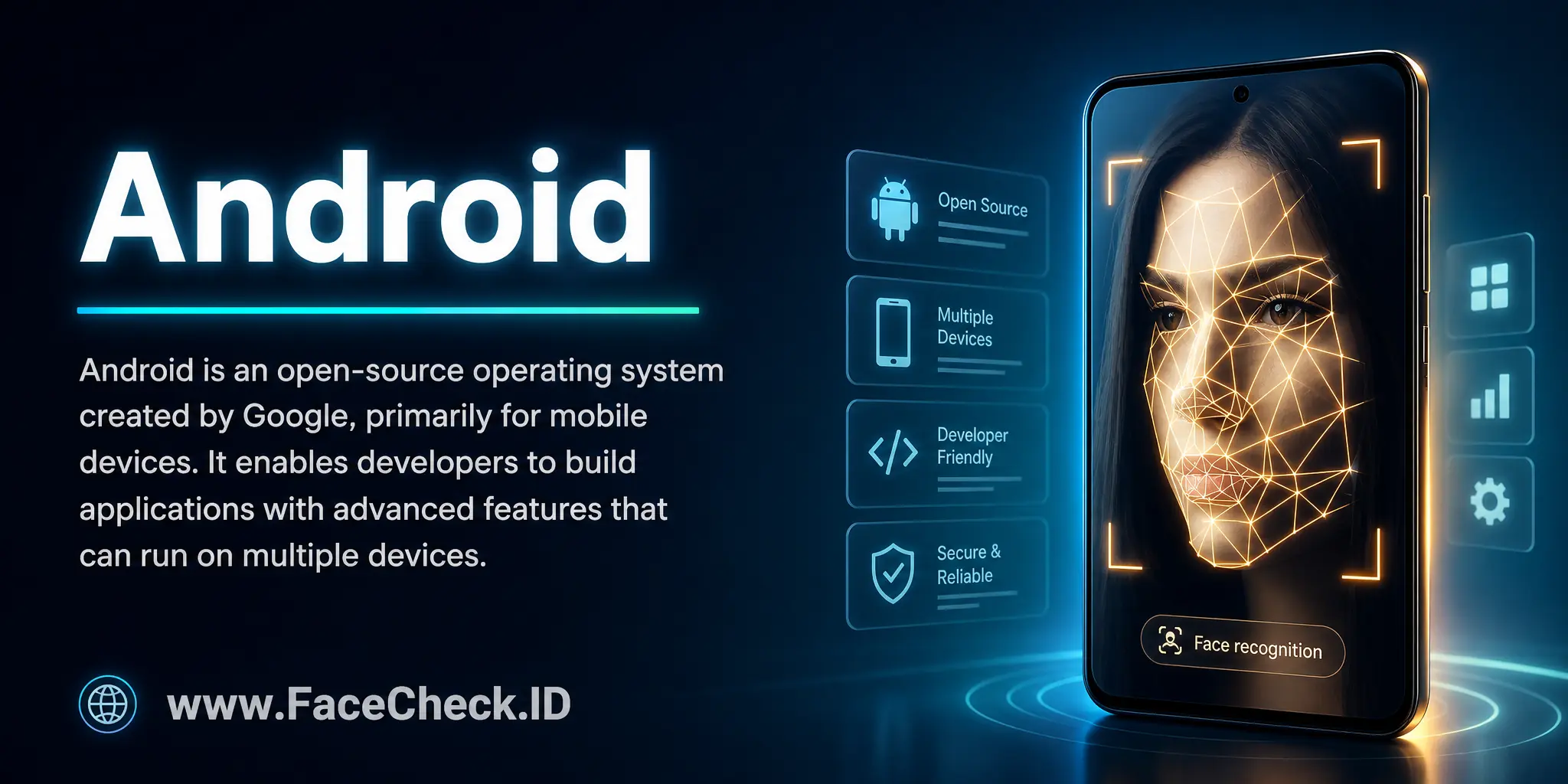
Android and Face Search Uploads
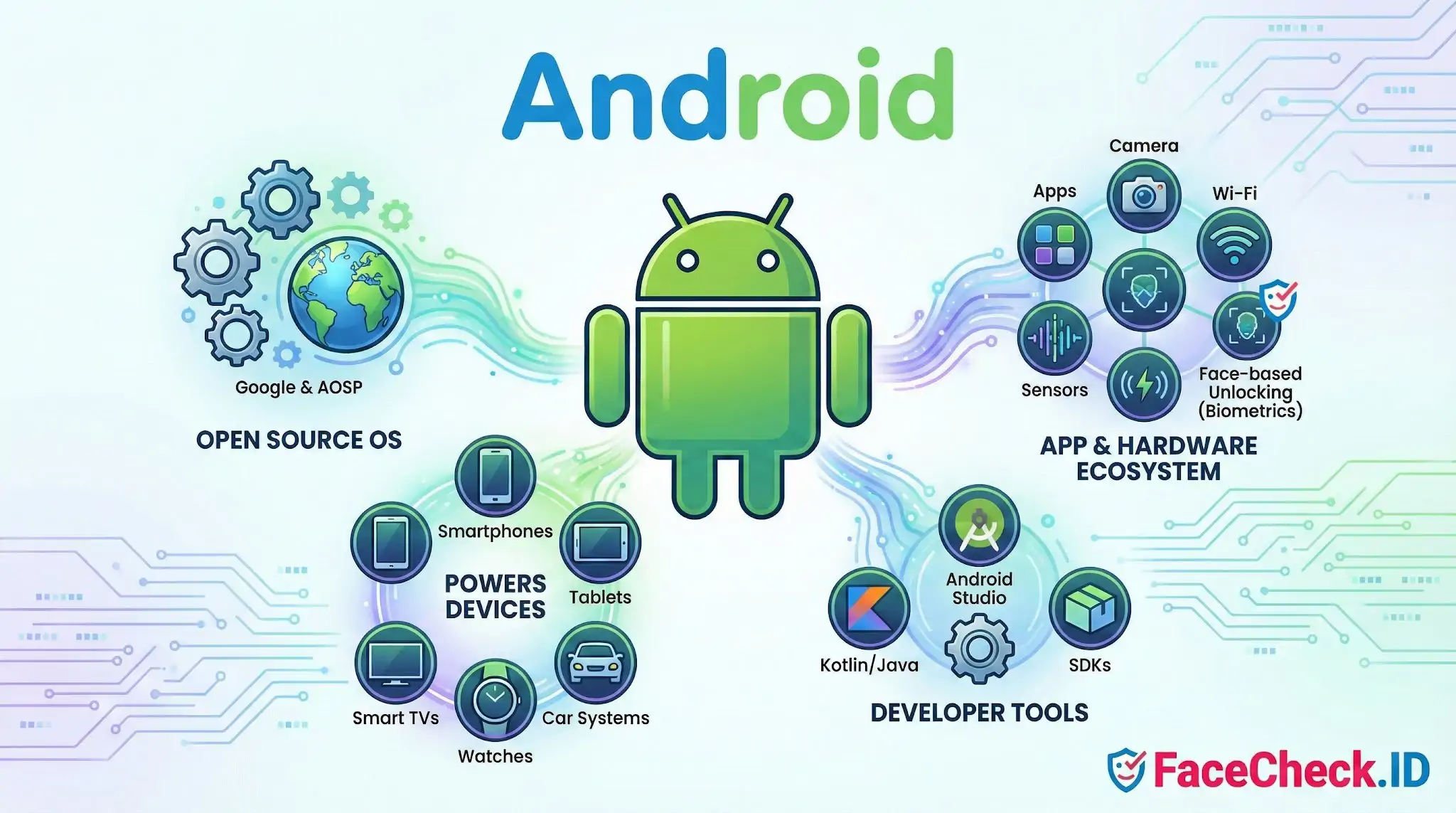
Most face searches start on a phone. Someone screenshots a suspicious dating profile, crops a face out of an Instagram story, or photographs a stranger from a distance, then uploads that image to FaceCheck.ID to see where else it appears online. Because Android powers the majority of the world's smartphones, it is the device behind a large share of those uploads and the source of many of the photos being searched in the first place.
How Android shapes the photos people search
The hardware and software stack on an Android device affects what FaceCheck.ID receives. Camera quality varies widely across price tiers, and that variation shows up in match results. A flagship Samsung or Pixel sensor produces clean, well-exposed faces that are easy to encode. A budget device under heavy compression often hands the search engine a soft, low-contrast image where small features blur together, which raises false positive rates and lowers confidence scores.
A few Android-specific factors that change search outcomes:
- HEIF and HEIC formats introduced on newer Android builds sometimes need conversion before upload, and lossy conversion can degrade fine facial detail.
- Aggressive on-device beautification built into stock camera apps from some manufacturers smooths skin and reshapes features, which can pull a face away from how it looks in indexed reference photos.
- Screenshot crops taken from social apps often retain platform overlays, like usernames or filter borders, that take up pixels the matcher could otherwise use on the face.
- Portrait mode and computational HDR can introduce artifacts around hairlines and ears that confuse alignment.
Front-facing selfies taken on Android phones tend to do well in searches because they are close-range, lit by the screen, and shot at the angle most public profile photos use.
Android apps and the public photo trail
Anything posted from an Android device through Instagram, TikTok, Facebook, LinkedIn, Telegram, WhatsApp status, dating apps, or forum clients can end up on the indexed public web. FaceCheck.ID searches across that surface. The operating system itself does not publish photos, but the apps people install on it do, and a single shared photo can be reposted, scraped, mirrored, and re-uploaded across dozens of pages over time.
This matters when investigating catfishing or scam accounts. A scammer running their operation from an Android device often reuses the same stolen photos across Tinder, Hinge, Telegram channels, and fake LinkedIn profiles. A reverse face search can surface those reuses even when usernames, bios, and phone numbers change.
Privacy controls that affect what is searchable
Android exposes more user-facing controls over photo metadata and app permissions than many users realize. Stripping EXIF data, restricting photo library access to specific images, and disabling location tagging all reduce the personal information attached to a face that ends up online. None of this affects whether a face can be matched, since FaceCheck.ID works from facial features, not metadata. But it does limit the amount of context that surrounds a match.
On-device face unlock, like the biometric system used to log into a phone, is unrelated to internet face search. Local biometric templates never leave the device. Public face search works on photos that are already indexed on the open web.
Limits worth keeping in mind
Knowing that a search image came from an Android device tells you almost nothing about the person in it. The OS is not an identity signal. Two screenshots from the same Pixel phone can show two completely different people, and a high-quality Android camera photo of a stranger does not give that stranger any less privacy than a DSLR portrait would.
Match results also depend more on the indexed reference photos than on the device that captured the query. A perfect Android photo can still return weak results if the subject keeps a low online profile, while a grainy, compressed image can return strong hits if the same face appears across many public pages. The device is one input. Interpretation still requires looking at the matched pages, the contexts they appear in, and whether the visible behavior across those pages is consistent with one real person or with reused stolen images.
FAQ
What does “Android” mean in the context of face recognition search engines?
Android is Google’s mobile operating system. In face recognition search, “Android” usually refers to using a face-search website or app on an Android phone—capturing a photo with the Android camera, selecting an image from the Android gallery, and uploading it to a face recognition search engine for matching.
Can I use an Android phone to run a face recognition search without installing an app?
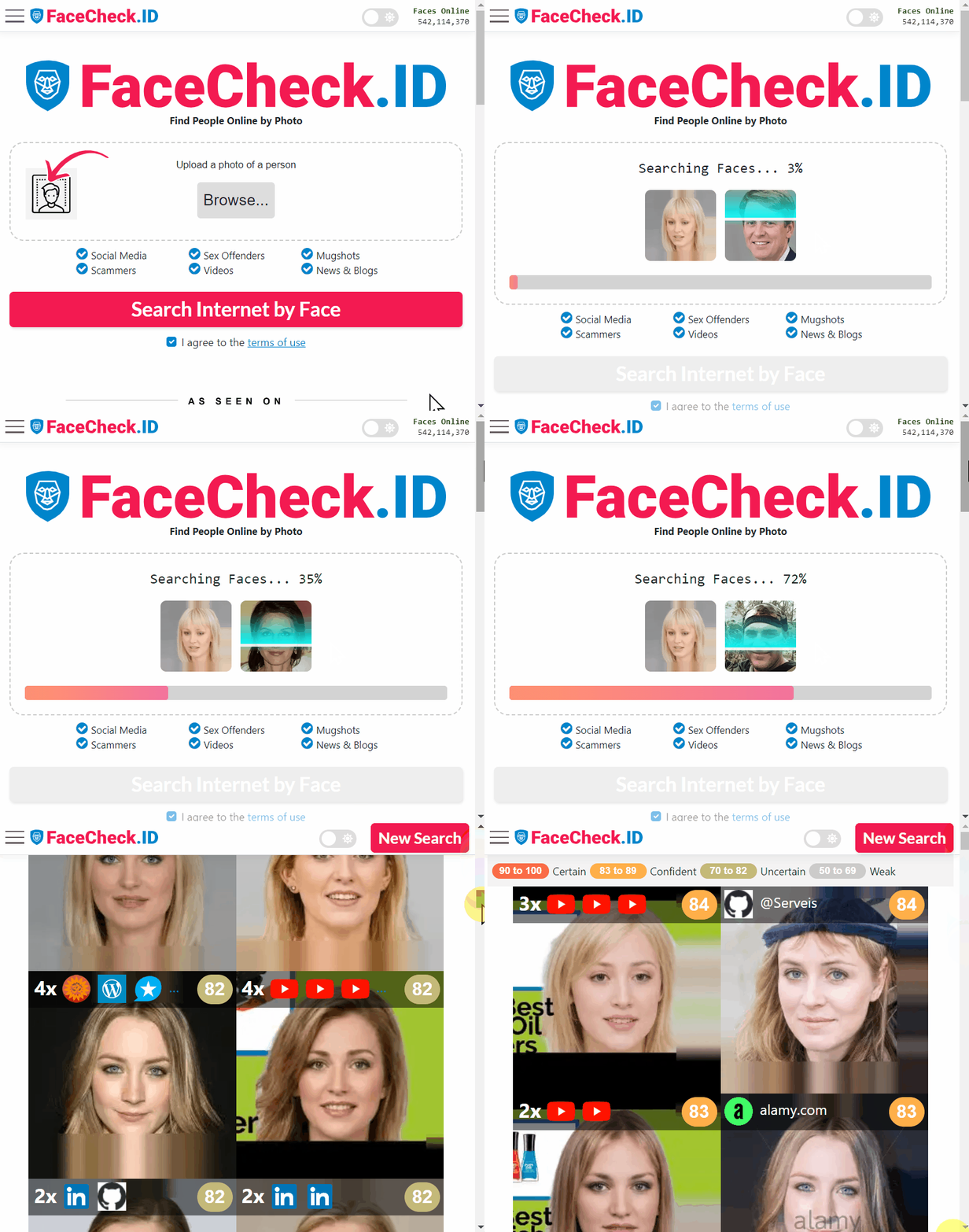
Often, yes. Many face recognition search engines work directly in a mobile browser on Android: open the site, upload a photo (from Files/Photos/Gallery), and review results. For example, FaceCheck.ID can be used via a browser on Android, which can reduce risk compared with installing unknown third-party apps.
What Android permissions are red flags for face recognition search apps?
Be cautious if an app requests broad or unnecessary access, such as full Contacts, SMS, Call logs, Accessibility Services, device admin rights, or “draw over other apps.” A face-search tool typically only needs limited access (e.g., a one-time photo picker, optional camera access) to select or capture the image you choose to upload.
How can I reduce privacy risk when uploading a face photo from Android?
Use a trusted source (prefer a reputable site in a browser over random APKs), upload only the minimum necessary crop (face only), and avoid including bystanders or sensitive background details. Also consider removing metadata (EXIF like location) by taking a screenshot/crop-export before upload, and review Android’s sharing/photo-picker prompts so you don’t accidentally grant broad library access.
Why might face search results differ on Android compared with desktop, and how can I improve uploads?
Differences can come from the image you upload (Android camera “beauty” filters, HDR smoothing, heavy compression from messaging apps, or a low-resolution screenshot) rather than the phone itself. For better results, use a clear, front-facing photo with good lighting, avoid beautification filters, crop tightly to the face, and upload the original file (not a re-shared version from a chat app).

Recommended Posts Related to android
-
How to Reverse Image Search from Android in 4 Steps
Guide to Finding People and Places with Android. Android – More Than Just a Selfie Machine! Where else could I find this photo online?" The great news is, your Android device isn’t just for calls, games, or social media.
-
How to Find Someone by Doing Reverse Face Search
You can use the app on your iPhone or Android device.
-
How to Find Someone Using a Screenshot
It is a free app available for iOS and Android. On Android, you can use the Google Lens app to perform the search. You can download Google Lens, a standalone app for Android and iOS devices.
-
Facebook Image Search: What Works When Facebook Won't Search by Photo
Facebook image search on Android. Google's Android instructions add that Chrome needs Google as its default search engine for the long-press option. FaceCheck.ID works in the phone browser as well, so the same screenshot can go to both; our Android reverse image search guide covers the gallery steps.
-
Reverse Image Search FAQ: The Ultimate Guide for 2025
How Do I Reverse Image Search On Android? Android offers multiple convenient ways to perform reverse image searches:. Face Lookup on Android.