iPhone Photos in Face Search
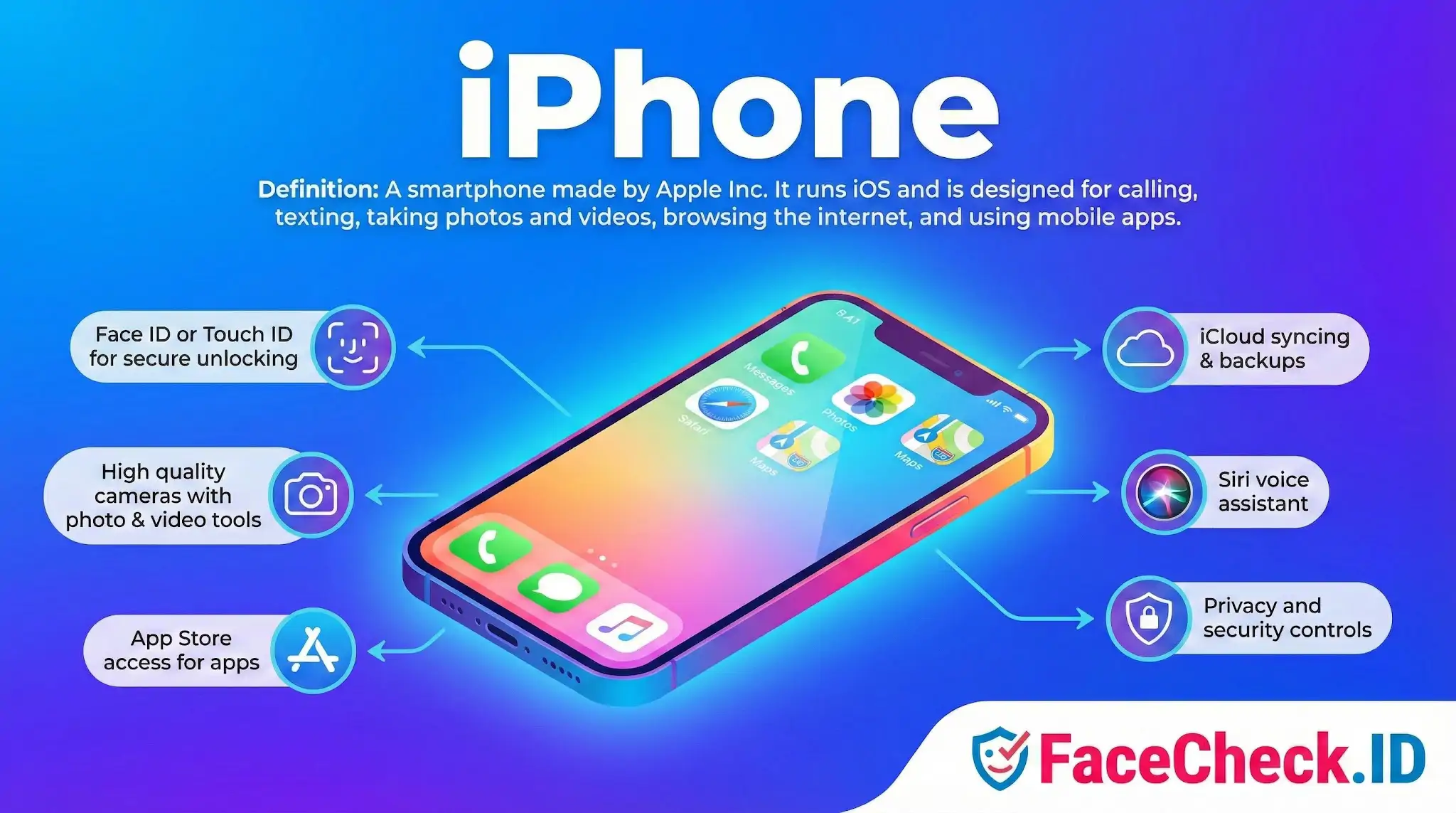
The iPhone is one of the most common sources of photos that end up in face-search results, both as the device used to capture a face and as the tool used to run a reverse image search on it. Its camera quality, default sharing behavior, and tight integration with cloud services shape what kinds of images get indexed publicly and how usable they are for face matching.
Why iPhone photos behave well in face search
Photos taken on recent iPhones tend to produce cleaner face matches than older or lower-end phone images. The reasons are mechanical, not magical:
- Front cameras are wide enough that selfies usually capture a clear, front-facing face, which is the easiest angle for face recognition to encode.
- HDR processing and Smart HDR keep faces from being blown out or lost in shadow, preserving the features a face embedding model relies on.
- Portrait mode separates the subject from the background, which can help recognition focus on facial geometry but can also blur ear and jawline detail in ways that reduce match confidence.
- Default resolution is high enough that even cropped or downscaled versions retain enough detail for indexing.
When a face uploaded to FaceCheck.ID was originally captured on an iPhone and posted to a public site, the chain of compression from device to upload to social platform usually still leaves a usable image. The same picture taken on a low-end Android with aggressive noise reduction often degrades faster across reposts.
How iPhones connect to online identity
The iPhone is rarely just the camera. It is also the device that pushes a photo into the public web, often without the user thinking about it. A few patterns matter for face search:
- iCloud Shared Albums and shared links can become indexable if forwarded or embedded.
- Default behavior in apps like Instagram, Snapchat, and TikTok strips most EXIF data, so a photo recovered through face search usually will not carry GPS or device metadata.
- iMessage and AirDrop transfers leave no public trace, so a private photo can still surface later if the recipient posts it.
- Live Photos saved as JPEGs lose the motion frame, but the still frame is what face-search engines see.
This matters when interpreting a match. A photo found through FaceCheck.ID may have started on someone's iPhone years ago and traveled through screenshots, reposts, and scraped profile galleries before being indexed.
Running reverse image search from an iPhone
People also use iPhones as the tool for face investigation. Common scenarios include checking whether a dating profile photo appears elsewhere, verifying that a supposed recruiter on LinkedIn is real, or looking up an unfamiliar person from a screenshot. Practical points:
- Safari and Chrome on iOS both allow uploading an image to FaceCheck.ID directly from the photo library.
- Screenshots from Instagram, Tinder, or Hinge can be cropped in Photos before upload, which improves match quality by removing UI elements that can confuse alignment.
- Long-pressing an image in Messages or Safari and saving it locally is usually the cleanest way to preserve resolution, since re-screenshotting reduces detail.
Face ID is not the same as face search
A frequent confusion: Face ID on the iPhone has nothing to do with reverse face search engines. Face ID stores a mathematical representation of the owner's face in the Secure Enclave on the device. It never leaves the phone, is not uploaded to Apple, and cannot be queried by any external service. FaceCheck.ID and similar tools operate on public web images, not on Face ID data. Owning an iPhone does not put your face into any face-search index. Posting photos of your face on the public web is what does.
Limits when interpreting iPhone-sourced matches
A high-quality iPhone photo can produce a confident match to a real person, but the device of origin tells you nothing about authenticity. Scammers use iPhones too, and a crisp selfie can still be stolen, AI-generated, or lifted from a stranger's account. Conversely, a poor match score on an iPhone-shot image does not mean the person is hiding. Heavy filters, beauty mode, or extreme angles can pull features far enough from a baseline image that recognition struggles. Treat the photo source as one signal among several, never as proof of identity on its own.
FAQ
Can I use an iPhone to run a face recognition search engine query?
Yes. An iPhone can be used to submit a face photo to a face recognition search engine through its mobile website or app (if available). Typically you will upload an image from your Photos library or take a new photo, then the service analyzes the face and returns web pages where similar faces appear.
What iPhone photo settings or capture tips help improve face-search match quality?
Use a sharp, well-lit, front-facing image where the face is large in the frame, not heavily filtered, and not covered by sunglasses, masks, or extreme angles. Avoid motion blur and low resolution screenshots; whenever possible, use the original photo rather than an image saved after multiple re-compressions from messaging apps.
If I use an iPhone selfie, will Face ID data be used by face recognition search engines?
No. Face ID data (the biometric template used to unlock your iPhone) is separate and is not shared with websites or third-party face search engines when you upload a selfie. A face search engine analyzes the image you provide (the pixels of the photo), not your iPhone’s Face ID template.
How can I reduce privacy risk when doing face recognition searches from an iPhone?
Before uploading, crop out bystanders and remove identifying background details (addresses, badges, documents). Prefer a neutral headshot, avoid uploading minors’ images, and consider using a separate browser profile/private browsing. Also review the service’s retention/opt-out policies and avoid re-uploading sensitive images that you wouldn’t be comfortable leaving the device.
Does FaceCheck.ID work on iPhone, and what iPhone-specific steps help you verify a match safely?
FaceCheck.ID can be used from an iPhone via its mobile site (and any available mobile experience), letting you upload a face photo and review matched pages. To verify safely on iPhone, open each source result, compare multiple photos (not just one), look for consistent contextual clues (same name, same accounts, same timeframes), and treat matches as leads rather than proof—especially when results include look-alikes or low-quality thumbnails.


Recommended Posts Related to iphone
-
How to Reverse Image Search from Your iPhone
Reverse Image Search on iPhone. iPhone Reverse Image Search. Reverse Image Searching from Your iPhone is Easy.
-
Reverse Image Search FAQ: The Ultimate Guide for 2025
Is There A Reverse Image Search On iPhone? Yes, iPhone users have several options for reverse image search:. Can You Reverse Image Search On An iPhone?
-
How to Find Someone by Doing Reverse Face Search
You can use the app on your iPhone or Android device.
-
How to Reverse Image Search from Android in 4 Steps
How to reverse image search on iPhone and Android (5 WAYS). Explains how to use reverse image search on Android and iPhone to find information about a particular image. How To Reverse Image Search On ANY iPhone / Android!
-
How to Find Images on the Web
You can also use a Google Chrome app to conduct reverse image searches on your iPhone or iPad. If you have an iPhone, you can also use the Google app. If you don't have an iPhone, you can try the free Chrome browser, which can be downloaded from the App Store or Google Play.