Image Search Google vs Face Search
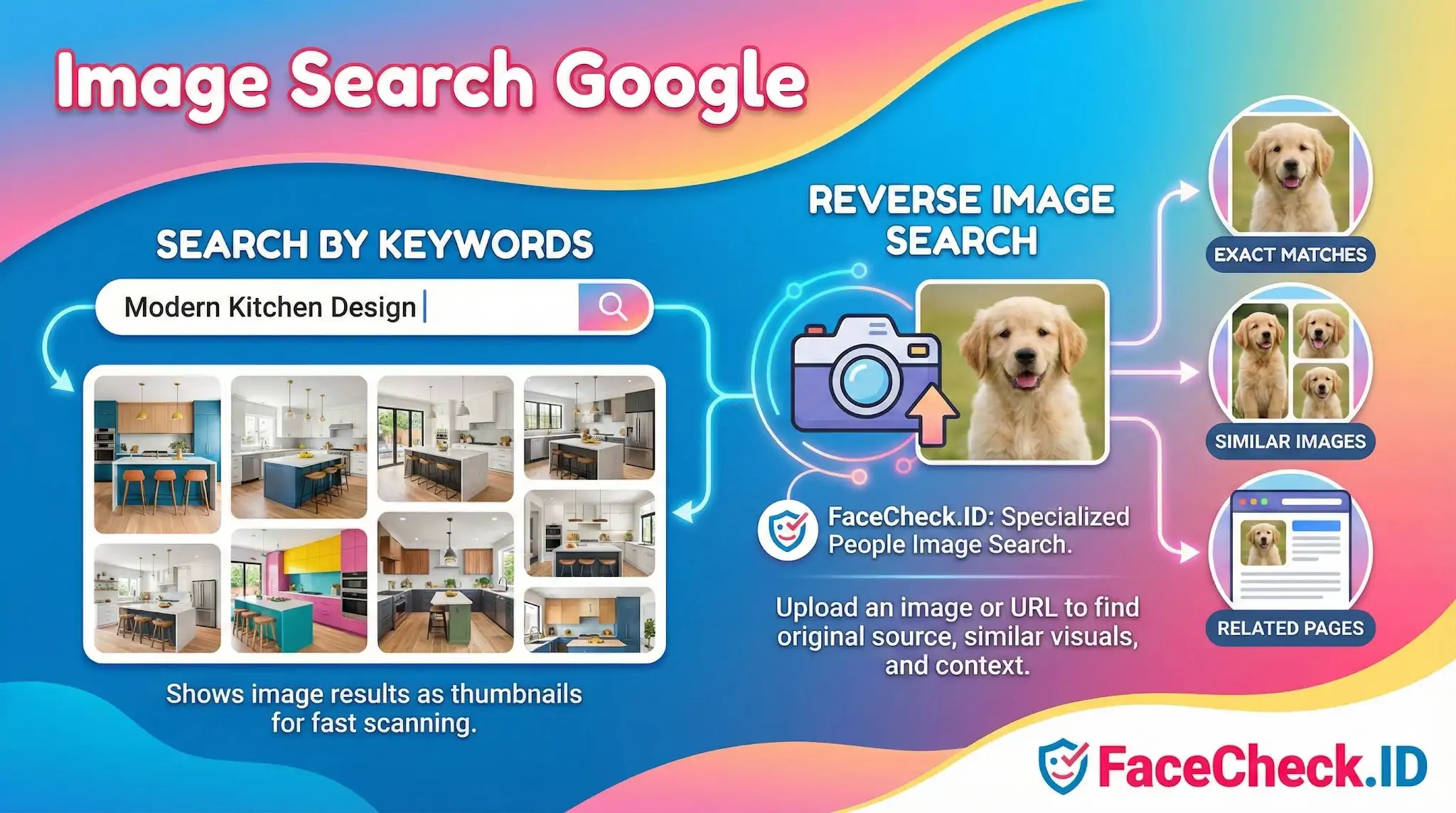
Google Images is the default starting point for most people who want to find or trace a picture online, but it was built to surface visually similar content, not to identify a specific person from their face. That distinction matters when you are trying to figure out who someone is from a photo, where their picture has been reused, or whether a profile you are talking to is real.
How Google image search differs from face recognition
Google's reverse image search looks for visual similarity and exact file matches. If the same JPEG has been copied across blogs, news sites, or stock galleries, Google is good at finding those copies. It can also pull up images that share colors, composition, or recognizable objects.
What it does not do is match faces across different photos. A picture of someone smiling at a wedding will not reliably surface another picture of the same person at a conference, even if both are public. Google Lens added some object and landmark recognition, but it still treats faces as visual content rather than as biometric identifiers. That is the gap a face-search engine like FaceCheck.ID is built to fill: matching the face itself, not the file.
When Google image search is the right tool
There are investigation tasks where Google Images outperforms a face search:
- Confirming whether a profile photo is a stock image or stolen from a public model's portfolio
- Tracing where a viral photo first appeared
- Identifying logos, uniforms, license plates, or landmarks visible in the background
- Finding higher-resolution copies of a cropped or compressed image
- Checking whether a "personal" photo was actually pulled from a Pinterest board or news article years ago
Romance scam victims often start here. If a suitor's profile picture turns up on Google as a Russian model's old Instagram post or a Brazilian fitness influencer's page, the investigation is essentially over. The catfish has reused someone else's image wholesale, and Google catches that because the file or a near duplicate is already indexed.
Where Google image search runs out of room
The trouble starts when a scammer or unknown person uses photos that have not been copied verbatim. A fraudster who pulls multiple photos from a single private Instagram account will defeat Google reverse search if those specific images were never indexed elsewhere. A stalker using a screenshot from a video call cannot be identified through Google because no matching file exists on the public web.
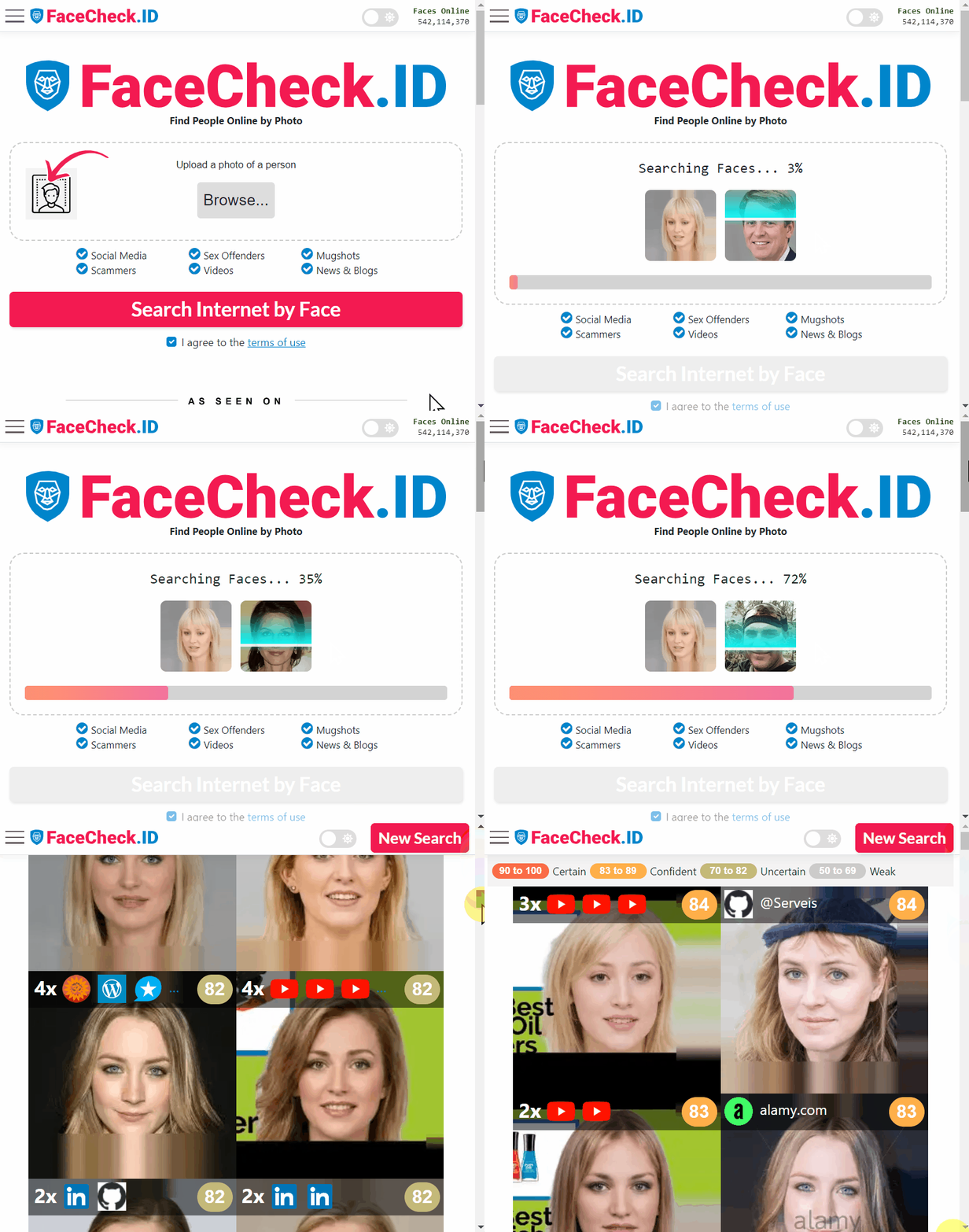
Face recognition handles this differently. It extracts features from the face itself and looks for the same face across other photos, even when the lighting, angle, crop, hairstyle, or background is different. That is why FaceCheck.ID can sometimes return a match from a LinkedIn headshot when the input was a candid party photo, while Google Images returns nothing useful.
The flip side is that face matching is probabilistic. It produces a confidence score, not a verdict. Lookalikes, identical twins, low-resolution inputs, heavy makeup, sunglasses, and extreme angles all degrade accuracy. Google's exact-match results, when they appear, are deterministic in a way face matches are not.
Combining both tools in an investigation
The practical workflow is to use both. Run the image through Google first to check for stock photo theft and obvious reuse. If Google comes back empty or only shows the source profile, run the face through a dedicated face-search engine to look for the same person under a different name or on an unrelated site.
Neither tool proves identity on its own. A Google match shows that an image exists in two places, not who the person is. A face match shows visual similarity above a threshold, not a confirmed name. Connecting a face to a real identity still requires corroborating details such as usernames, locations, employers, or mutual contacts, and a willingness to accept that some searches simply will not resolve.
FAQ
Does “Image Search Google” do true face recognition search or mainly find identical/near-duplicate photos?
Google Images (and Google Lens) are primarily optimized for visual similarity and finding exact or near-duplicate images/pages, not guaranteed person-by-face matching across different photos. It may surface the same person if the exact photo (or close variants) is reposted, but dedicated face search engines (e.g., FaceCheck.ID) are designed specifically to match the same face across different images where backgrounds, crops, and lighting vary.
How do I use Google Image Search effectively when I’m trying to find where a face photo appears online?
Use the clearest version of the image you have, preferably uncropped first (to capture contextual clues), then try a second search with a tight crop around the face. Also try multiple images of the same person (different angles/lighting). Review results by opening pages to check the surrounding context (captions, upload dates, account names) rather than assuming the first visually similar result is the same person.
Why might Google Image Search show the wrong person when I search with a face photo?
Google can return visually similar faces (similar age, pose, hairstyle, expression) or pages that contain a similar-looking person, especially when the query image is low-resolution, filtered, heavily edited, or partially occluded. It can also prioritize popular or high-engagement images that “look like” your query over less common true matches.
What should I do if Google Image Search finds nothing, but I believe the person’s photos are online?
Try alternate frames/photos (different angle, higher resolution), remove filters/overlays if possible, and run both a full-image search and a face-only crop. If the person’s images were uploaded at a different size, mirrored, or heavily compressed, those variations can affect results. If you need person-by-face matching across different photos (not just duplicates), consider a dedicated face recognition search engine such as FaceCheck.ID, and treat any hits as leads that require verification.
What are safe ways to interpret “Image Search Google” results when investigating a possible impersonation or scam?
Treat matches as pointers, not proof of identity. Confirm by checking multiple independent pages, looking for consistent usernames/contact info, and verifying timelines (older sources are often more credible than fresh reposts). Be cautious with single-source or sensational pages (e.g., repost blogs). If results involve allegations or high-stakes decisions, use additional verification steps (direct communication, platform reporting tools, and—where appropriate—professional/legal guidance) instead of relying on image search alone.

Recommended Posts Related to image-search-google
-
AI Face Search: How It Works and Best Tools (2026)
This is fundamentally different from traditional reverse image search. Google Images uses perceptual hashing and object recognition to find visually similar images. Reverse image search (Google, TinEye) finds copies or visually similar images by matching pixel patterns.
-
Tutorial: Reverse Image Search for Instagram
Instagram has no built-in reverse image search. Google's face search is, charitably, not a thing.
-
How to Reverse Image Search from Android in 4 Steps
How To Reverse Image Search (Google). How To Reverse Image Search (Google).
-
OnlyFans Finder: How to Search by Face to Find Profiles
The key difference from regular reverse image search: Google or TinEye match the exact image (or near-duplicates).
-
PimEyes Review: Is It Worth the Price in 2026?
How is PimEyes different from Google reverse image search? Google reverse image search matches images by visual similarity (colors, shapes, composition).