FaceCheck No Results? Why Face Search Comes Back Empty (and How to Fix It)
By the FaceCheck.ID team, the people who build the face search engine · Last updated September 23, 2026
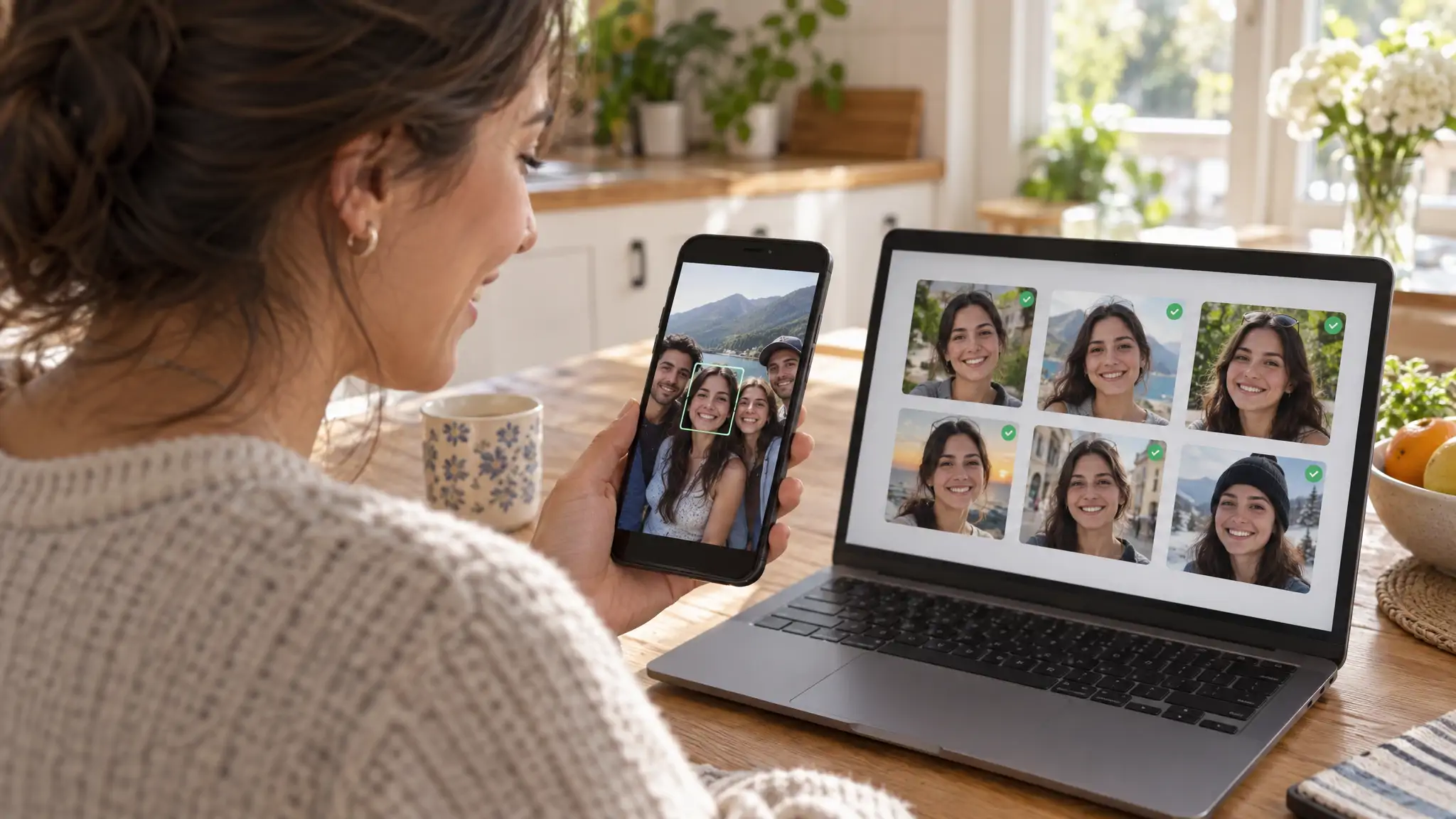
You upload a photo, hit search and get… nothing. Or a handful of weak matches that look like distant cousins at best. Before you decide FaceCheck is broken or the person doesn't exist online, take a breath. A FaceCheck search with no results is usually the photo's fault, and most photos can be fixed in under a minute.
This guide covers the nine most common reasons a reverse face search comes back empty, a quick checklist to fix them, and how to tell when "no results" is actually the true answer. That last one matters more than it sounds.

In this article, we're going to discuss
Why Reverse Face Search Comes Back Empty
A face search engine can only match what it can see. It finds the face in your photo, turns it into a numeric description, and looks for similar faces on the public web pages it has indexed. Any of the problems below can break that chain, either at "see the face" or at "the face is somewhere we indexed".
| Problem | What goes wrong | The fix |
|---|---|---|
| Sunglasses | The eyes and brows carry a lot of the match, and they're gone | Use a photo with the eyes visible |
| Group shot | The engine picks one face, and it may not be the one you meant | Crop to a single face |
| Tiny face (around 80 px) | Barely above the 60 × 60 px minimum, so there's too little detail | Use a closer or higher-resolution photo |
| Heavy beauty filter | Smoothing and reshaping change the face the engine measures | Find an unfiltered photo |
| Face mask | Half the face is missing | Use a photo without the mask |
| Extreme side profile | Most indexed photos are front-facing, so there's little to compare against | Use a front-facing or slight-angle photo |
| Big age gap | Faces change over decades; a 15-year-old photo may not match today's pages | Use the most recent photo you have |
| Private-only presence | Photos exist only behind logins, so no crawler can see them | Nothing to fix, see below |
| Non-indexed platform | The person only posts on sites that block crawling | Nothing to fix, see below |
The first seven are about the photo, and you can usually fix them. The last two are about where the person's photos live. No photo tweak changes those, and no honest search engine can get around them.
One rule for the age-gap row: never use a photo of someone as a minor, even an old one of an adult. FaceCheck.ID is for adult faces only, and searching for a minor is prohibited and gets the account banned.
Quick Fix: Six Steps Before You Give Up
Work through these in order. Each one takes seconds, and together they rescue most empty searches.
- Check that a face was detected. If FaceCheck says it didn't recognise a face, the photo is too dark, too blurry or too small. Try a brighter, sharper one.
- Crop to one face. If more than one person is in the shot, crop so that only the person you want is left. More on this below.
- Make the face big. The face must be at least 60 × 60 pixels, and the whole image should ideally be 500 × 500 or larger. Bigger is better, up to the 6 MB file limit.
- Swap in a cleaner photo. No sunglasses, no mask, no heavy filter, facing the camera. Think passport photo, but with a better mood.
- Add a second or third photo. You can search with up to three photos of the same person at once.
- Search the original image, not a screenshot of a screenshot. Every re-save and every zoom-and-grab costs detail.
If you've done all six and still get nothing, read the section on honest "no results" before trying anything else.
Crop Rules: One Big, Clear Face
Cropping is the single most useful fix, so here are the rules in full.
One face only. When a photo has several faces, FaceCheck searches one of them, and it doesn't ask which. If the bride, the groom and three bridesmaids are all in frame, you're playing wedding roulette. Crop to your person and the guessing stops.
Keep the whole face. Your crop should include the eyebrows, eyes, nose, mouth and jawline, with a little space around them. Don't crop so tight that you slice off the chin or forehead.
Don't upscale a tiny face. Enlarging a 70-pixel face doesn't add detail. It just makes a bigger blur. If the face is small in the original, find a better photo instead.
Crop the original, not the preview. On a phone, open the full image before cropping. The thumbnail in a chat app or feed is often heavily compressed.
On Windows, the quickest route is the snipping tool (Win + Shift + S). Drag a box around the face, then paste it straight into FaceCheck with Ctrl + V. Our screenshot search guide covers phones too. The official reverse image search tips list the photo requirements.
The Second Photo Strategy
One photo is one angle, one lighting setup and one expression. Adding a second and third photo of the same person gives the search more to work with. That helps most when your only photo is a bit off: a slight angle, a patchy filter, harsh shadows.
A few rules make this work:
- Same person, different photos. Different days, angles and lighting help most. Three crops of the same selfie add almost nothing.
- Best photo first. Start with your clearest, most front-facing photo.
- Don't mix people. If an extra photo looks like a different person, FaceCheck will reject it and ask you to search one image at a time.
The multi-photo search is still experimental, so it won't always beat a single good photo. If three photos give worse results than your best one on its own, trust the best one.
Upload, Paste or URL: Which Input Works Best?
You can get a photo into FaceCheck three ways, and they're more or less equal on quality. What matters is the photo you end up with.
- Upload a file when you have the original. It usually has the most detail. FaceCheck accepts JPG, PNG, WebP and BMP.
- Paste an image or its URL when the photo is on a web page. Copy the image (or its address) and paste it into the search page. If the site blocks access to the image, you'll get an access-denied message; save the image or take a screenshot instead.
- Use the Chrome extension to right-click an image on any page and choose Find Person with FaceCheck.ID.
Screenshots work fine, as long as the face is large. A full-screen phone screenshot of a video call is great. A screenshot of a profile grid where each face is the size of a lentil is not.
Free vs Paid: Does Buying Credits Help?
This is the question we'd most like you to ask before buying, so here's the straight answer.
A free search shows you every matching face thumbnail with its 0-100 score. Credits unlock the links to the source pages where those faces appear, show any red flags, and let a search return a longer list of matches. Credits don't make the engine look harder at the same photo or find a face that isn't in the index.
So:
- Free search shows zero matches? Don't buy credits yet. Fix the photo first using the steps above. If a better photo still shows nothing, credits won't change that.
- Free search shows strong matches (83 and up)? That's when credits are worth it. You'll see where those faces live on the web.
- Free search shows only weak matches (below 70)? Try a better photo before paying. Weak scores usually mean a weak photo, or a lookalike rather than your person.
One more thing worth knowing: a search that returns no results at all doesn't use up a credit or a free search. You can fix your photo and try again without it costing you.
For what each score band means, see the score guide in our FAQ: 90-100 is a certain match, 83-89 confident, 70-82 uncertain and 50-69 weak.
When "No Results" Is the Honest Answer
Sometimes the photo is perfect and there's still nothing. That's not a bug. FaceCheck searches public web pages, so it can't see:
- Private accounts on Instagram, Facebook or anywhere else
- Closed apps such as Tinder, Bumble, Hinge, Snapchat or WhatsApp
- Sites that block crawling, which FaceCheck doesn't index
- Brand-new photos that no crawler has reached yet
Plenty of real people have almost no public photos. An empty result can simply mean the person keeps a low profile, and that's their right. Our Instagram search guide explains what's visible from a private account and what isn't.
Here's the flip side. If you're checking a dating match who claims to be a model, an influencer or a surgeon with a busy social life, a completely empty result from a clean photo is itself worth noticing. It doesn't prove anything, but it's a good reason to ask for a live video call before things go further. Our guide to fake profile scams with stolen photos covers what to look for.
And when you do get matches, remember what they are: similar faces, not confirmed identities. People look alike more often than you'd think (the doppelgänger effect is real), so check any match against other information before acting on it.
How we know this
We build and run FaceCheck.ID. The photo limits (60 × 60 px face, 6 MB file, up to three photos), the rule that empty searches don't use up a credit, and the way group photos are handled all come straight from how the search engine works, as checked in September 2026. The score bands and privacy rules are the ones in our public FAQ. If any of this changes, we update the page and the date at the top.
FAQ
Why does FaceCheck show no results for my photo?
Usually the photo is the problem. The most common causes are sunglasses, a mask, a heavy filter, a tiny face, a group shot or an extreme side angle. Fix those and search again. If a clean, front-facing photo still finds nothing, the person's photos are probably only on private accounts or sites FaceCheck can't index.
Does FaceCheck search Instagram private accounts?
No. FaceCheck only searches public web pages, so private Instagram accounts, Stories behind a login and closed apps like Snapchat or WhatsApp are out of reach. If someone's photos appear only on a private account, no honest face search engine will find them.
Should I buy credits if the free preview is empty?
No, not yet. Credits unlock the source links and a longer list of matches, but they don't find faces that the free search couldn't see at all. Try a clearer photo, a tighter crop or a second photo first. Buy credits once the free search shows matches you want to open.
Does a search with no results use a credit?
No. A search that returns no results doesn't use up a credit or one of your free searches, so you can improve the photo and try again.
What is the minimum photo size for face search?
The face must be at least 60 × 60 pixels, and the image should ideally be 500 × 500 pixels or larger. The file can be up to 6 MB in JPG, PNG, WebP or BMP format. Bigger, sharper faces give better matches.
Why are my matches all low scores?
Low scores (below 70) usually mean the photo gave the engine too little to work with, or the matches are lookalikes rather than your person. Try a sharper, front-facing, unfiltered photo, or add a second photo of the same person.
Ready to try again? Crop to one clear face, then run a fresh search at FaceCheck.ID. Remember to check any match before you act on it.

Read More on Search by Image
Top 4 Benefits of Facial Recognition in Online Dating with FaceCheck.ID
Online dating makes it easy for scammers to hide behind stolen photos since they can stay anonymous. Before you meet up with your next match, verify their identity to protect your heart and your wallet from catfish and romance fraud.
On the subject in other languages
 FaceCheck sem resultados? Por que a busca facial não retorna nada (e como corrigir)
 FaceCheck 无结果?为什么人脸搜索一无所获(以及如何解决)
 FaceCheck bez výsledků? Proč vyhledávání podle obličeje nic nenajde (a jak to napravit)
 Keine Ergebnisse bei FaceCheck? Warum die Gesichtssuche leer bleibt (und wie Sie das beheben)
 ¿FaceCheck no muestra resultados? Por qué la búsqueda facial no encuentra nada (y cómo solucionarlo)
 Aucun résultat sur FaceCheck ? Pourquoi la recherche faciale ne renvoie rien (et comment y remédier)
 Nessun risultato su FaceCheck? Perché la ricerca facciale non trova nulla (e come risolvere il problema)
 FaceCheckで結果が出ない? 顔検索が空振りになる理由(そして解決方法)
 FaceCheck 검색 결과가 없나요? 얼굴 검색 결과가 비어 있는 이유와 해결 방법
 Brak wyników w FaceCheck? Dlaczego wyszukiwanie twarzy niczego nie znajduje (i jak to naprawić)
 FaceCheck не выдал результатов? Почему поиск по лицу ничего не находит (и как это исправить)
 لا نتائج في FaceCheck؟ لماذا يعود البحث بالوجه خاليًا (وكيفية إصلاح ذلك)
 FaceCheck Sonuç Vermiyor mu? Yüz Araması Neden Boş Döner (ve Nasıl Düzeltilir)
Popular Topics
Doppelgänger Doppelgänger Effect Face Search Engine Identity Image Search Confirm Identity Reverse Face Search Search Instagram How To Facebook Instagram Fake Profiles Photo Search Screenshot Photo Lookup Face SearchTop Reverse Image Search Tools: PimEyes vs FaceCheck Detailed Analysis