Google Lens Explained: Visual Search & Instant Actions
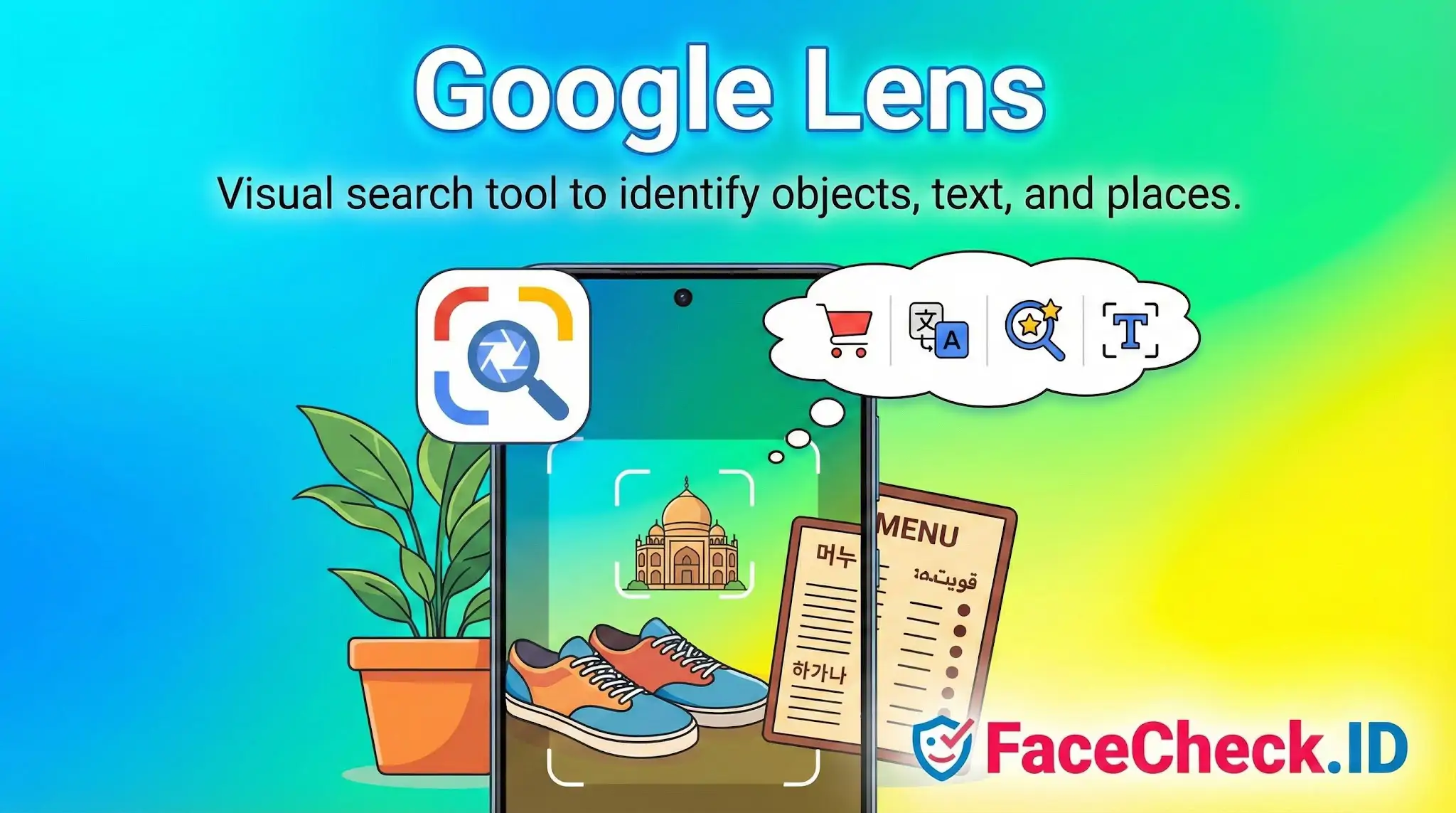
Google Lens is a visual search tool from Google that lets you use your phone camera or an image to identify objects, places, text, and products. Instead of typing a query, you point the camera at something or upload a photo, and Google Lens returns relevant results like matches, descriptions, links, and actions you can take.
What Google Lens does
Google Lens can recognize and work with many types of visual information, including:
- Objects and products like clothing, furniture, electronics, and household items
- Plants and animals including common species and breeds
- Landmarks and places such as buildings, attractions, and storefronts
- Text in images, including printed pages, signs, menus, and documents
- Barcodes, QR codes, and packaging for quick lookups and links
Common uses of Google Lens
Identify something you see
Point your camera at an item to find its name, details, and similar images.
Shop from a photo
Use Lens to find visually similar products, compare prices, and locate where to buy an item online.
Copy and work with text from images
Lens can select text in a photo so you can copy it, search it, save it, or paste it into messages and notes.
Translate text instantly
Lens can translate text on signs, labels, or menus using your camera view, helpful when traveling.
Find information about places
Scan a landmark or business to see information like the location, hours, website, and reviews when available.
Where you can use Google Lens
Google Lens is available across several Google apps and Android features, depending on your device:
- Google app on Android and iPhone
- Google Photos for searching inside your saved images
- Google Camera on many Android phones through a Lens mode or shortcut
- Chrome on mobile for searching what is shown on your screen in some versions
- Android screen search on select devices, letting you search from content displayed on your phone
How Google Lens works
Google Lens uses computer vision and machine learning to detect what is in an image, then connects those visual signals with Google Search results. When text is detected, it also applies optical character recognition to make the text selectable and searchable.
Google Lens vs Google Images
- Google Images is mainly for searching and browsing image results based on typed queries or uploaded images.
- Google Lens is built for action oriented visual search, letting you interact with what is in an image, such as copying text, translating, shopping matches, or identifying objects.
Privacy notes
Using Google Lens may send images or visual data to Google to analyze and return results. What is stored or associated with your account depends on your device, app settings, and whether you are signed in.
FAQ
Is Google Lens a true face recognition search engine for finding the same person across different photos?
Google Lens is primarily a visual search tool that excels at finding visually similar images, objects, places, products, and near-duplicate photos. It may surface pages where the same image (or a close crop/resize) appears, but it is not designed as a dedicated open-web face recognition engine that reliably matches the same person across different photos (different lighting, age, pose, etc.). For person-focused face search, dedicated tools (e.g., FaceCheck.ID) are often built specifically for face matching rather than general visual similarity.
What are the best steps to use Google Lens when you want to check if a face photo is reused online?
Use a clean, high-resolution frame with a clear face; crop tightly to the face and also try an uncropped version; run multiple queries (different crops and angles) because results can vary; and open matched pages to confirm context (reposts, memes, screenshots). Treat Lens hits as leads: verify that the page actually contains the same photo (or the same person) before drawing conclusions.
Why might Google Lens show many look-alike faces or irrelevant people when searching a face photo?
Because Lens optimizes for overall visual similarity, it can overweight cues like hairstyle, glasses, makeup style, lighting, and background aesthetics. If the input is low-quality (blur, heavy filters, side profile) or the face is small in the image, Lens may return “similar-looking” people rather than the same person. Trying different crops (face-only vs. including clothing/background) can change what features the system prioritizes.
Can Google Lens find faces from private or locked social media accounts?
No tool can reliably search what it cannot access. Google Lens generally returns results from content that is publicly available and indexable (or otherwise accessible to Google). Private, locked, or non-indexed social media content is typically not searchable via Lens unless the image has been reposted publicly elsewhere or exposed through another public page.
When does it make sense to use FaceCheck.ID instead of Google Lens for a face lookup?
Use Google Lens first when you suspect the exact same photo (or a close crop) has been reposted and you want fast, broad web matches. Consider a dedicated face-search tool like FaceCheck.ID when you need person-centric matching across different photos of the same individual (different angles, ages, hair/makeup), or when Lens returns mostly look-alikes. In either case, don’t treat a match as proof of identity—confirm with multiple independent signals (same usernames, consistent biographical details, multiple photos from the same source, and corroborating links).

Recommended Posts Related to google lens
-
How to Reverse Image Search a Screenshot with FaceCheck.ID
In this guide, we'll show you how to reverse image search a screenshot, introduce you to an innovative tool called FaceCheck.ID for looking up faces, and explain why Google Lens is the best choice for objects and products. Introducing Google Lens for object and product recognition. Download the Google Lens app on your smartphone.
-
How to Reverse Image Search from Android in 4 Steps
Google Lens: Android’s In-Built Genius for Things and Places. 🔍 Quick Guide to Decoding Things and Places with Google Lens on Android:. Access Google Lens.
-
Free Reverse Image Search Tools That Actually Work (2026)
Google Lens is what most people try first. "What is this object/place/product?" Use Google Lens. Google Lens works through the Google app on both iPhone and Android.
-
How to Find Someone on Instagram by Photo (2026)
Google Lens is decent at finding products and landmarks, but it actively avoids matching faces. Google indexes some Instagram content, but Google Lens deliberately avoids face matching.
-
Face Recognition Online: What Actually Works in 2026
Google Lens. Google Lens doesn't do faces.
-
How to Search for a Person Online by Photo
Google Lens will match your photo to a random stock image. Google Lens: free, bad at faces, good at objects.
-
How to Find Images on the Web
Google Lens is an excellent example of a simple reverse image search tool. Most Android phones have a Google Lens application to search within images.
-
Social Media Lookup: Find Anyone's Profiles by Photo
Google Lens is slightly better.
-
Results for People Are Limited: Why It Happens & How To Fix It
Google Lens is designed for general visual search, not for searching people online. What You Can Still Use Google Lens For. Google Lens is still very useful, just not for searching people online.
-
How to Find Someone Using a Screenshot
It is a little less accurate than Google Lens, but it might be the best alternative if you can't use the Google Lens app. On Android, you can use the Google Lens app to perform the search. You can download Google Lens, a standalone app for Android and iOS devices.
-
Best Facial Recognition Search Engines (2026)
Google Lens: Good for Objects, Bad for Faces. Google Lens❌ Limited✅ YesEntire webObjects, not faces. Google Lens is fully free but doesn't do face matching.
-
Reverse Image Search FAQ: The Ultimate Guide for 2025
Using Google Lens:. For products: Try Google Lens or [Pinterest Lens](https://www.pinterest.com/pin-builder/). Google Lens (Android and iOS).
-
AI Dating Scams in 2026: How to Spot Fake Profiles and Avoid Romance Fraud
Important: General tools like Google Lens and TinEye are great for objects or exact image matches, but they are useless for searching people by face.
-
How to Reverse Face Search: Find Anyone by Photo (2026)
What About Google Lens and Yandex? Google Lens can sometimes match faces, but Google intentionally limits facial recognition in its search products.
-
Yandex Image Search: Complete Guide to Finding Faces (2026)
Mobile supportBrowser onlyBuilt into Google Lens. The mobile experience is functional but less polished than Google Lens.
-
PimEyes Review: Is It Worth the Price in 2026?
Google Lens. Google Lens matches images by visual similarity (colors, composition, objects), not facial geometry.
-
Romance Scammer Photos: How to Reverse Search and Expose Stolen Identities
Google Lens will find the exact image if the scammer used it without cropping or filtering. Finally, try Google Lens.
-
PimEyes Free Alternatives That Actually Work (2026)
Google Lens / Google Reverse Image Search. Google Lens found 0 useful person-identification matches.
-
TinEye Review: What It Does Well and Where It Falls Short
Google Lens. Google Lens matches visual similarity (colors, composition) rather than facial features.
-
Top 6 Reverse Image Search Mobile Sites to Find People, Products, and Places
Using the Google app: Search for an image on Google Images, tap on the desired image, and use Google Lens to select a part of the image for the reverse search. Searching an image from specific sites like Facebook or Instagram: Long-press the image and choose "search image with Google Lens" to get visual matches.